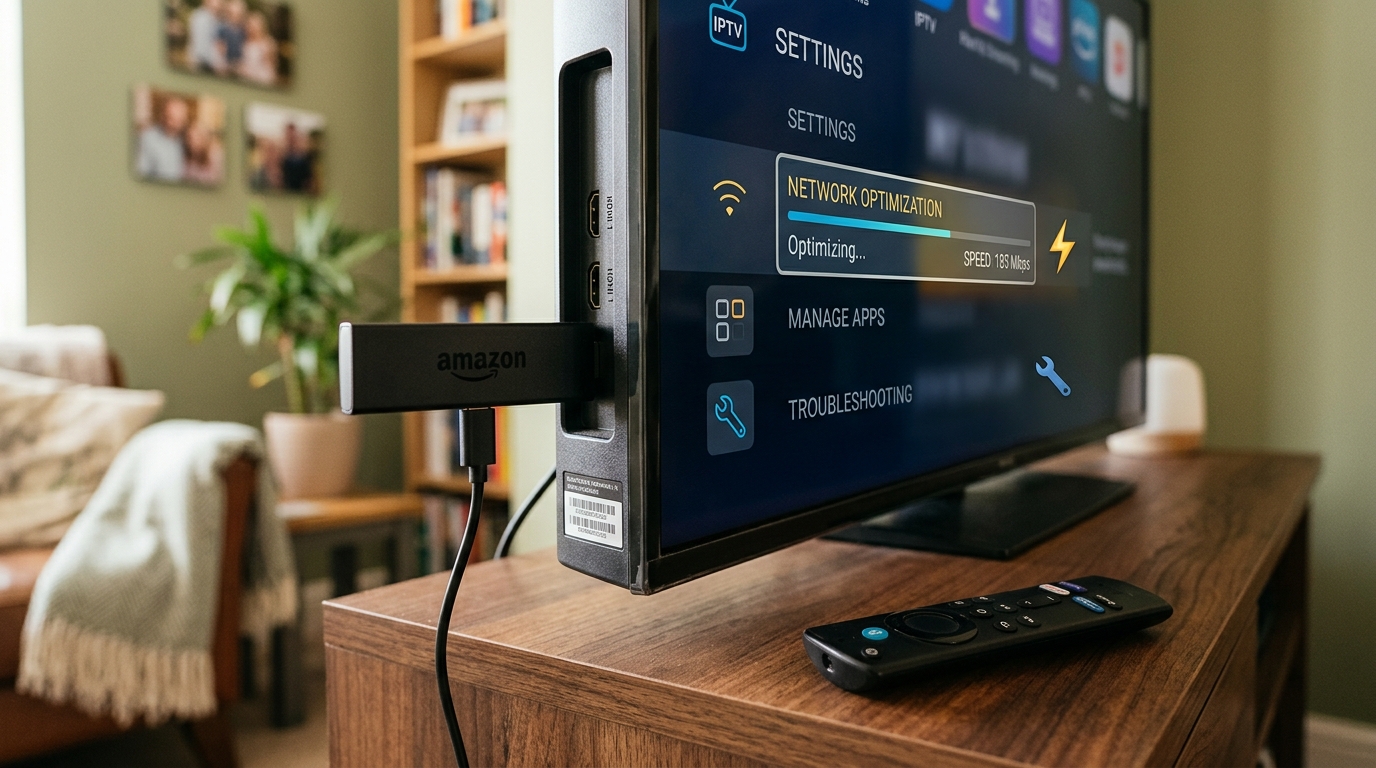
The Amazon Fire Stick is the most popular way to watch IPTV in the UK. It’s cheap, it works with any TV that has an HDMI port, and setup takes about five minutes.
But a Fire Stick that’s been in use for a year or two can feel slow. Apps take ages to open, channels buffer, and the TV guide lags. Most of this is fixable in a few minutes without buying anything new. This guide covers which model to use, a quick install recap, ten ways to speed it up, and fixes for the most common problems.
Which Fire Stick works best for IPTV?
| Model | IPTV verdict |
|---|---|
| Fire TV Stick 4K Max | Best choice. Fast, Wi-Fi 6E, smooth 4K. |
| Fire TV Stick 4K | Very good. Slightly slower menus than the Max. |
| Fire TV Cube | Excellent, and has a built-in Ethernet port. |
| Fire TV Stick (HD) | Fine for HD channels. No 4K. |
| Fire TV Stick Lite | Works, but slow with large channel lists. |
| Fire TV Stick 4K Select | Avoid for IPTV. Runs Vega OS, which can’t install IPTV player apps. |
Check before you buy: Amazon’s newer Fire TV Stick 4K Select looks almost identical to the 4K Max but runs a different operating system. It can’t install the player apps IPTV needs. If you’re buying a Fire Stick for IPTV, make sure it says 4K Max.
Installing an IPTV player: the short version
Our full Fire Stick installation guide has every step in detail, but in short:
- Search for and install Downloader from the Fire TV home screen.
- Turn on developer options: Settings → My Fire TV → About, then click your device name seven times.
- Allow Downloader to install apps: Settings → My Fire TV → Developer Options → Install unknown apps → Downloader → On.
- Open Downloader, enter the code we send with your login, and install the player.
- Open the player, choose Xtream Codes, and enter your username, password and server URL.
That’s it. Most people are watching within five minutes.
Ten ways to make your Fire Stick faster
Work through these in order. The first three make the biggest difference.
1. Use a wired connection
Wi-Fi is the most common cause of buffering. An Amazon Ethernet adapter plugs into the Fire Stick’s power socket and gives you a cable connection to your router. If a cable isn’t practical, make sure the Fire Stick is on your router’s 5 GHz network (or 6 GHz on the 4K Max), not 2.4 GHz.
2. Restart it regularly
Fire Sticks rarely get switched off, so memory fills up over time. Restart once a week: Settings → My Fire TV → Restart, or hold Select and Play/Pause together for five seconds.
3. Clear the player app’s cache
Settings → Applications → Manage Installed Applications, choose your IPTV player, then Clear cache. Don’t press Clear data unless you’re happy to log in again.
4. Uninstall apps you don’t use
Every installed app takes storage and some run in the background. Remove anything you haven’t opened in months from Manage Installed Applications.
5. Check your free storage
Go to Settings → My Fire TV → About → Storage. If you have less than about 1 GB free, apps and updates will slow down. Deleting old apps is the quickest fix.
6. Turn off data collection
These settings stop the Fire Stick using resources to send usage data. Go to Settings → Preferences → Privacy Settings and turn off Device Usage Data, Collect App Usage Data and Interest-based Ads.
7. Stop background app activity
Some apps keep running after you leave them. Force stop anything you’re not using from Manage Installed Applications → Force stop.
8. Increase the player’s buffer
Most IPTV players let you choose how much video to load ahead. In TiviMate, look under Settings → Playback → Buffer size and try Medium or Large. A slightly bigger buffer means a slightly slower channel change, but far fewer pauses.
9. Try switching the video decoder
If a channel stutters, look in your player’s settings for the decoder or video player option. Switching between hardware and software decoding (or between the player’s built-in options) often fixes channels that stutter on one setting.
10. Keep everything up to date
Check for Fire TV updates in Settings → My Fire TV → About → Check for Updates, and update your player app when prompted. Updates often include playback fixes.
Fixes for common problems
| Problem | Most likely cause | Fix |
|---|---|---|
| Buffering in the evening | Weak Wi-Fi, busy home network | Use Ethernet or 5 GHz Wi-Fi; pause downloads on other devices |
| Black screen, sound playing | Decoder issue | Switch the player’s decoder setting; restart the Fire Stick |
| Sound out of sync with the picture | Audio processing delay | Settings → Display & Sounds → Audio → AV Sync Tuning |
| TV guide empty or wrong | Guide hasn’t downloaded yet | Leave the app open for 10 minutes, or refresh the EPG in the player’s settings |
| “Invalid login” | A typo in your details | Copy details exactly from our message; the server URL needs http:// and the port |
| Downloader says “blocked” | Install permission switched off | Turn Downloader back on in Developer Options → Install unknown apps |
| App crashes on opening | Corrupted cache | Clear cache, then restart; reinstall if it continues |
| Picture looks soft on a 4K TV | Resolution set too low | Settings → Display & Sounds → Display → Video Resolution → Auto |
Still buffering after all that?
Run a speed test on the Fire Stick itself, not on your phone. Many speed test apps are available from the Amazon Appstore. Test at the time you normally watch, such as 9pm on a Saturday.
- 15 Mbps or more, steady: your connection is fine. Message us and we’ll check things on our side.
- Under 10 Mbps, or jumping up and down: the problem is between your router and the Fire Stick. Try Ethernet, move the router closer, or use a mesh Wi-Fi point.
Our broadband speed guide on the homepage explains how much speed each picture quality needs.
Need a hand?
Setup help and troubleshooting are included with every GoLiveOnTV plan. Send us a message with your Fire Stick model and a photo of what you’re seeing, and we’ll walk you through the fix, usually in minutes.
If your Fire Stick is an older Lite or HD model and still struggles after these fixes, it may simply be time for an upgrade. Our IPTV boxes comparison covers the best options at every budget.